
Attribution issues rarely show up where you expect. GA4 reports look clean, yet below the surface, hidden leaks quietly sink your ROAS. The good news? These leaks are easy to fix and fast. In this guide, we’ll cover 7 common GA4 attribution leaks, why they matter, and how to plug them with 48-hour fixes.
 Aravind Sundar
Aravind Sundar
GA4 Attribution Iceberg: 7 Hidden Leaks Killing Your ROAS
Most brands trust GA4 attribution at face value. But beneath the surface, hidden data leaks quietly distort ROAS, misallocate budget, and block growth. This guide breaks down the 7 most common GA4 attribution failures, and how to fix them.

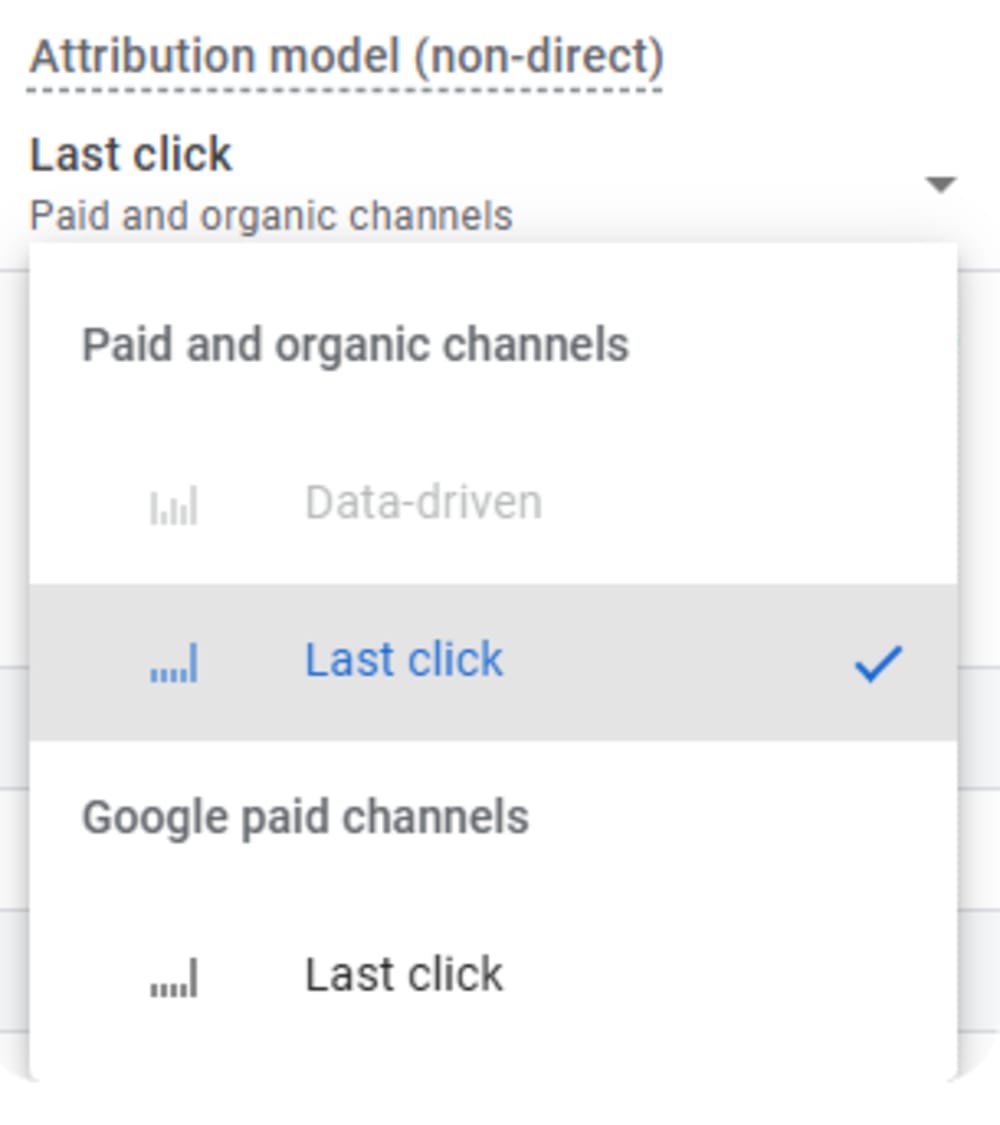
By default, GA4 uses last-click attribution. That means it gives 100% of the credit to the final click in a journey. Awareness and consideration campaigns get undervalued, even if they were the reason a user converted later.
The impact? Teams cut top-funnel channels, thinking they’re wasteful, only to see acquisition pipelines collapse.
48-Hour Fix: Go to Admin → Attribution Settings and switch to Data-Driven Attribution (DDA). Then open the Model Comparison report to evaluate the impact across ROAS. This quick change often uncovers channels driving more revenue than you realized.
Your funnel is only as visible as the events you track. Missing add-to-cart, signup, or lead-form events means GA4 undercounts your performance. That makes campaigns look inefficient when they’re actually generating value upstream.
We once found a client undervaluing Meta Ads by 30% simply because their add-to-cart event wasn’t firing.
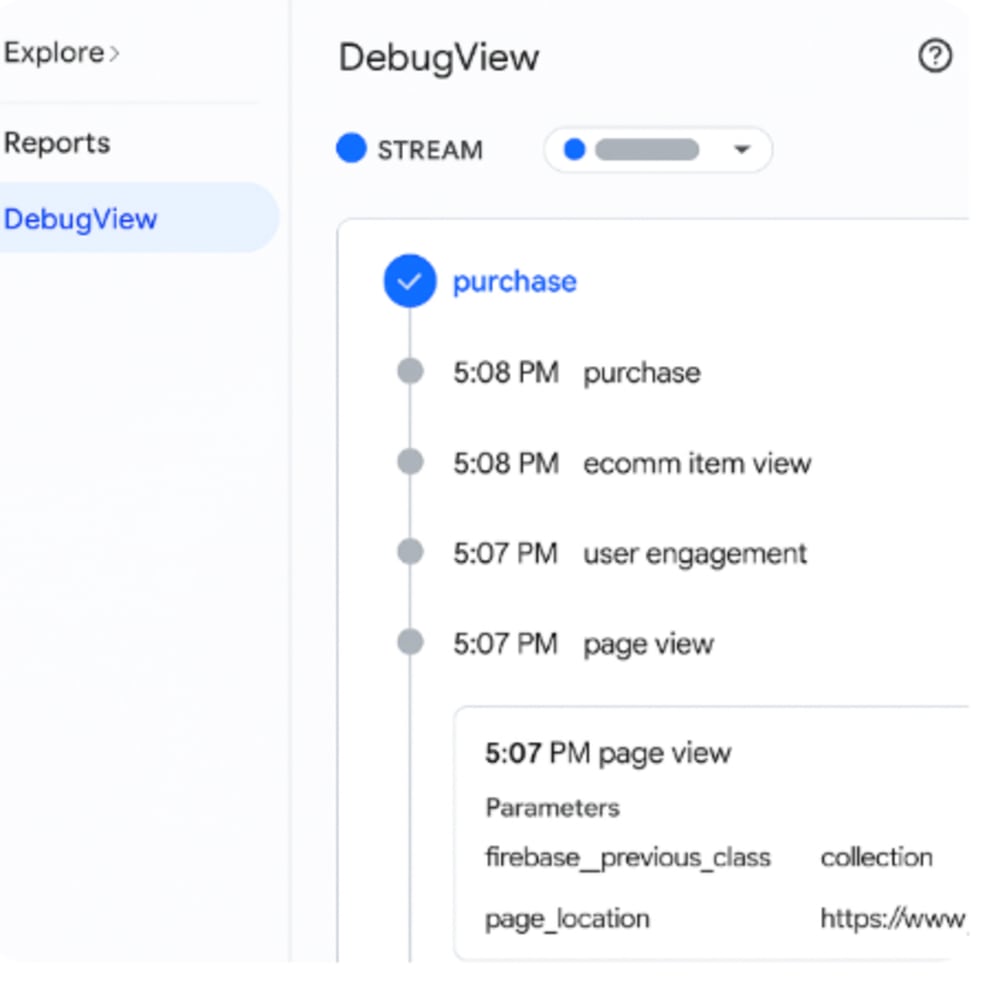
48-Hour Fix: In Admin → Events, compare the list to your actual funnel steps. Use DebugView or GTM Preview to verify events fire properly. Mark the right ones as conversions. Once tracked, ROAS improves overnight because the full funnel is visible.
Inflated ROAS is just as dangerous as deflated. If purchases or leads fire twice, say via GA4 eCommerce and HubSpot integration, you’ll see numbers that don’t match finance.
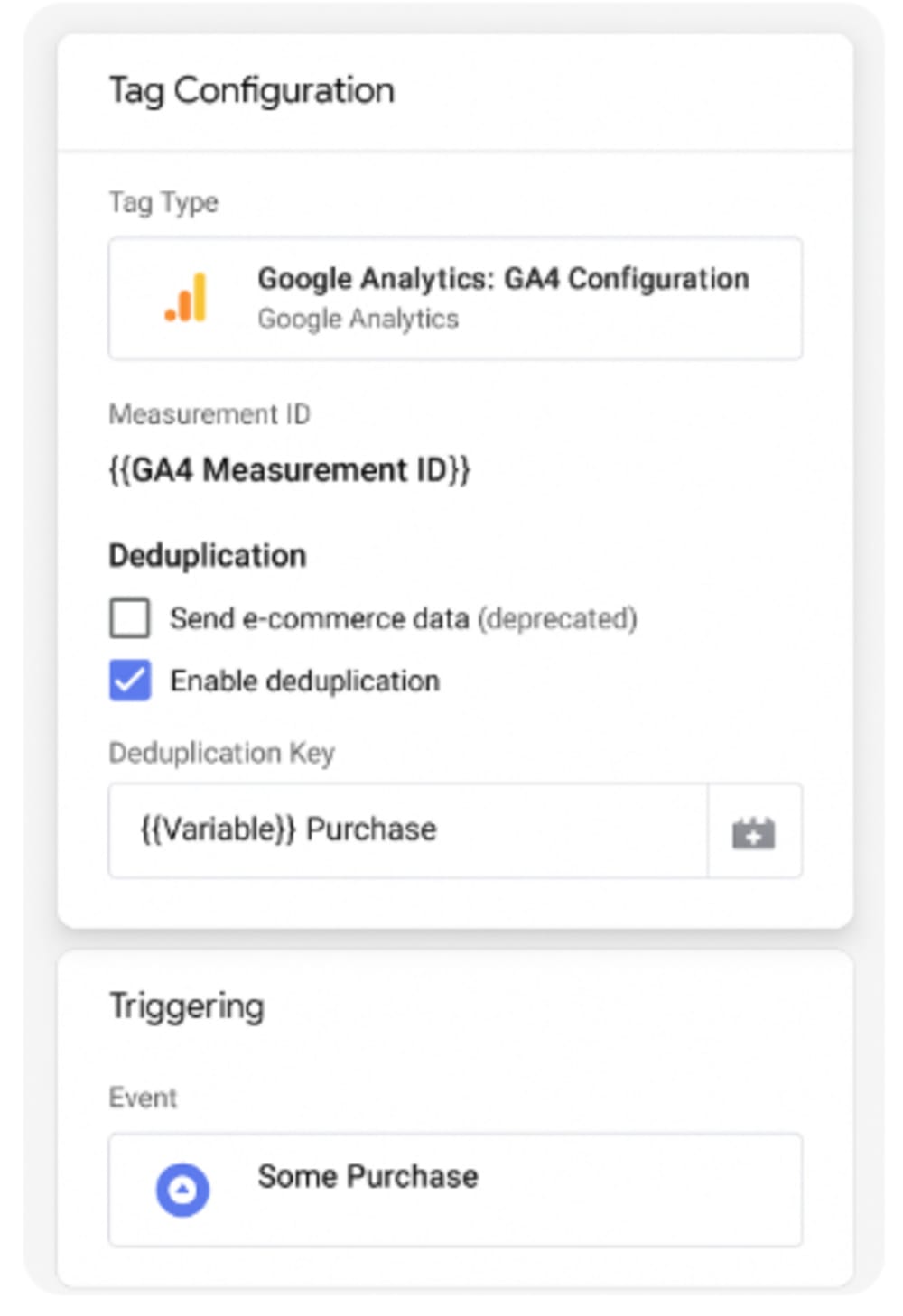
One subscription brand showed “amazing” ROAS until we discovered every purchase counted twice. 48-Hour Fix: Check Realtime and DebugView for duplicate events. Add deduplication parameters in GTM or use transaction IDs via Conversion API. Within days, you’ll restore accurate ROAS reporting and trust from your CFO.
Modern buyers don’t convert in one session. They click an ad on mobile, research later on desktop, and purchase on tablet. Without cross-device stitching, GA4 sees three users, and mobile ads appear ineffective.
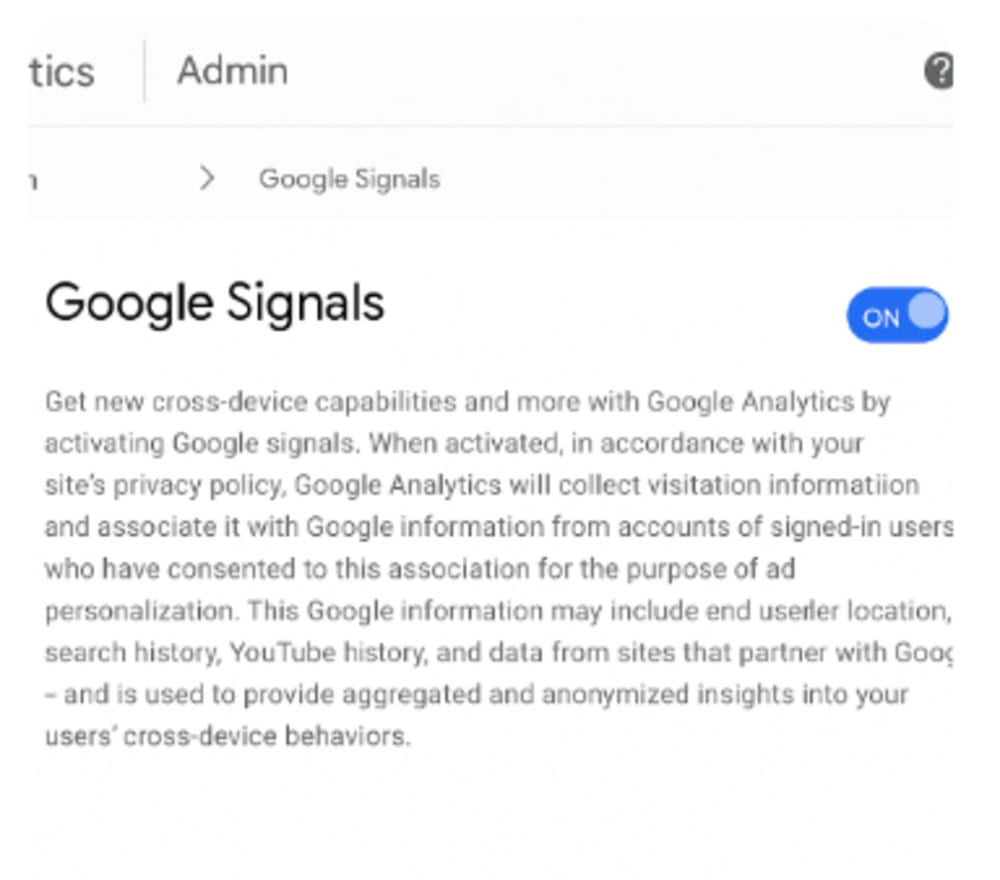
48-Hour Fix: Enable Google Signals under Admin → Data Settings. This allows cross-device attribution for signed-in users. If your platform has logins, implement User-ID for even stronger stitching. These changes reveal the true role of mobile in driving conversions.
Not sure if your GA4 setup is accurate?
Book a free 30-min call — we'll pinpoint exactly what's off in your tracking.
Marketers often complain: “GA4 never matches Meta or Google Ads.” That’s because pixels and GA4 use different attribution methods. GA4 is session-based; ad platforms use click-through and view-through logic.
The mismatch creates mistrust in ROAS.
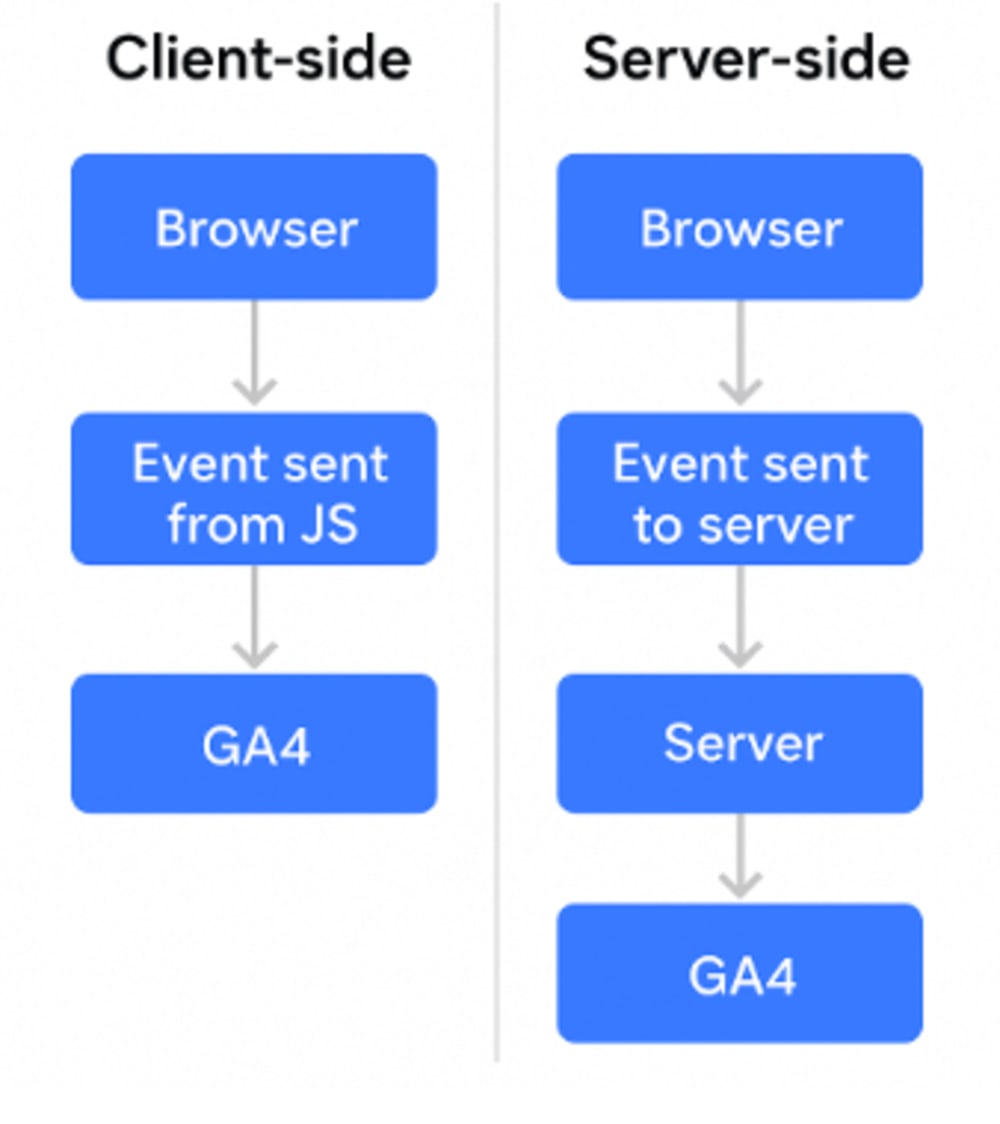
48-Hour Fix: Align attribution windows (7-day click + 1-day view vs 30-day click). Standardize event naming. For higher accuracy, implement server-side GTM and conversion APIs. These reduce discrepancies and bring GA4 closer to platform metrics.
Even when models match, attribution windows can differ. GA4 may give credit to a 30-day-old click, while Meta only looks back 7 days. This creates two different stories for the same campaign.
48-Hour Fix: In Attribution Settings, align lookback windows to your business goals. A common setup: 30-day click, 1-day view. Document these settings for each platform so your team evaluates performance consistently.
The simplest but most overlooked leak: messy UTMs. Facebook / cpc vs fb / Paid splits data, and conversions may fall into “Direct.” That erodes confidence in your reports.
We helped a SaaS client clean UTMs, and overnight, 20% of “Direct” conversions reattributed back to paid campaigns, ROAS improved instantly.
48-Hour Fix: Create a UTM naming convention. Share it across teams and agencies. Use a Google Sheet builder or a tool like Campaign URL Builder to enforce standards. Clean UTMs = clean attribution.
UTM Standardization: The Foundation of Clean GA4 Attribution
Loose UTM naming is one of the fastest ways to corrupt your attribution data. When UTM parameters are inconsistent, GA4 misclassifies paid sessions as direct traffic, inflating your "Direct" channel and shrinking credited conversions from paid sources. One SaaS client we worked with recovered 20% of "Direct" conversions back to paid channels simply by enforcing a consistent UTM naming convention across their team.
The problem is structural. "Facebook," "facebook," and "fb" all resolve as different sources in GA4. Your campaign data fragments across rows, your channel grouping logic misfires, and your ROAS calculation shrinks because credit is invisible.
What Happens When UTMs Break
When UTM parameters are missing, malformed, or inconsistent, GA4 defaults to session-source attribution logic. If no UTM is present, GA4 looks at the referrer. If the referrer is absent or matches the current domain, the session is tagged as Direct. This means paid clicks from poorly tagged email campaigns, PDF links, or improperly configured ad placements get buried in Direct, permanently.
Inconsistent medium values cause a separate failure. "cpc," "CPC," "paid," and "paid-search" are four different mediums to GA4. Your channel grouping rules will only match one of them. The rest land in "Unassigned" — a bucket that accounts for 15–30% of traffic in poorly governed accounts.
The downstream effect on ROAS is direct. If GA4 isn't crediting a paid channel with conversions it generated, your channel-level ROAS drops. You reduce budget. The channel performs worse. You cut further. The real culprit — broken UTMs — never gets fixed.
How to Build a UTM Naming Convention
A working UTM naming convention covers five parameters: source, medium, campaign, content, and term. The goal isn't creativity — it's consistency. Define a fixed controlled vocabulary for each parameter and enforce it with a spreadsheet-based URL builder or a locking tool like UTM.io or Google's Campaign URL Builder.
Use lowercase only. Use hyphens as word separators. Map your mediums to GA4's default channel grouping conditions so paid sessions resolve correctly. For example: use "cpc" for paid search, "paid-social" for social ads, and "email" for email campaigns. These strings match GA4's out-of-box channel grouping rules.
Assign UTM ownership explicitly. One person or team owns the master UTM sheet, approves new campaign naming, and audits quarterly. Without ownership, every new campaign manager invents their own system.
5-Step UTM Audit Checklist:
- Pull a Source/Medium report in GA4 for the last 90 days. Flag any medium values outside your approved list.
- Filter sessions by "Direct" and cross-reference with ad platform spend dates. A spike in Direct on a launch day signals missing UTMs.
- Check all email, social, and display links in your most recent three campaigns. Confirm UTMs are present and correctly formatted.
- Audit your GA4 channel grouping rules (Admin → Data Display → Channel Groups) and verify each rule matches your medium conventions.
- Set up a monthly alert: if Direct traffic exceeds 25% of total sessions, flag for UTM review.
In our experience auditing mid-market accounts, poorly governed UTMs misattribute an average of 18–22% of paid conversions to Direct. The fix takes less than a week to implement and requires no code changes.
Cross-Channel GA4 Conversion Tracking: Setup Best Practices
GA4 was built for multi-channel measurement, but its default configuration doesn't reflect how most paid media stacks actually work. Without deliberate setup, GA4 undercounts conversions from Meta, TikTok, and display channels by 20–40% compared to platform-reported numbers. Channel grouping misconfigurations and missing cross-domain rules are the two most common failure points.
Step-by-Step Cross-Channel GA4 Setup
- Link Google Ads to GA4. Go to GA4 Admin → Product Links → Google Ads Links. Link the account, then in Google Ads import GA4 conversions under Tools → Conversions → Import. Mark them as primary conversion actions and remove any duplicate Google Ads conversion tags tracking the same event.
- Configure Meta Pixel alongside GA4. Meta's attribution window defaults to 7-day click, 1-day view. GA4 uses data-driven attribution with a 30-day lookback by default. These windows don't match, so conversion counts will never align. Document the gap and use GA4 as your source of truth for cross-channel comparison.
- Add TikTok and display channels via UTM + Event tagging. TikTok doesn't link natively to GA4. Use consistent UTM parameters (source: tiktok, medium: paid-social) combined with GA4 event tagging to capture campaign performance.
- Customise GA4 channel grouping. Navigate to Admin → Data Display → Channel Groups. The default rules misfire for paid social and display channels unless your UTMs exactly match Google's expected strings. Add custom rules — for example, a rule that places "medium exactly matches paid-social" into a Paid Social channel.
- Set up cross-domain tracking. If your checkout, booking form, or product lives on a subdomain (e.g., shop.yourdomain.com), configure cross-domain measurement under Admin → Data Streams → Configure Tag Settings → Configure Your Domains. Without this, users crossing subdomains generate a new session tagged as referral, breaking attribution mid-funnel.
- Evaluate server-side GTM for high-accuracy collection. Client-side tags are blocked by ad blockers at rates of 15–30% depending on your audience. Server-side GTM routes event data through your own server before sending it to GA4, bypassing most blockers and improving data completeness. For e-commerce or high-spend accounts, the setup cost pays back in attribution accuracy within weeks.
Channel grouping is the most overlooked configuration in GA4. If your paid social, affiliate, or influencer traffic is landing in "Unassigned," your conversion reports are structurally broken regardless of how well your tags fire. Fix channel grouping before you diagnose anything else.
Accounts running four or more paid channels without customised GA4 channel grouping consistently show 25–35% of paid conversions in "Unassigned." The fix is a one-time admin task that takes under two hours.
How to Diagnose GA4 Data Discrepancies in Under an Hour
GA4 discrepancies between platform and analytics numbers aren't random — they follow predictable patterns. The most common sources are attribution window mismatches, timezone differences, sampling in reports, bot traffic inclusion, and the structural difference between GA4's event-scoped data model and platform-reported session data.
Before you start: accept one baseline reality. GA4 and your ad platforms will never show identical numbers. The goal isn't perfect alignment. It's a documented, stable gap you understand and can explain to stakeholders.
4-Step Diagnosis Framework
- Check: Align Your Baseline Variables. Before comparing any numbers, verify that both platforms use the same date range, same timezone, and same conversion event. GA4's timezone lives under Admin → Property Settings. A one-hour offset creates day-boundary discrepancies that look like tracking failures but aren't. Also confirm you're comparing the same attribution model — switch both platforms to last-click for an apples-to-apples check.
- Isolate: Find Where the Gap Starts. Pull GA4 sessions from your paid channel for the same period and compare to ad platform clicks. A click-to-session ratio below 70% points to tag loading failures, blocked pixels, or redirect chains stripping UTMs. A session-to-conversion ratio that differs between platforms points to attribution window or import configuration issues.
- Compare: Run a Parallel Conversion Audit. In GA4, go to Reports → Engagement → Events. Filter by your conversion event name and check the event count. Then go to Google Ads → Tools → Conversions. If GA4 shows the event firing but Google Ads shows zero imported conversions, the issue is in the import configuration, not the tag.
- Fix: Match the Failure to Its Solution. Timezone mismatch → align property and platform timezones. Attribution window gap → document the expected delta (typically 15–25% for last-click vs data-driven) and share it with stakeholders as a standard variance. Tag failure → use GA4 DebugView to confirm events fire. Missing key event flag → enable it in Admin → Events. Duplicate conversions → check for multiple tags firing the same event in GTM Preview Mode.
Most GA4 discrepancies resolve into one of three buckets: configuration errors you can fix in an afternoon, structural differences between data models you document and communicate, or data collection gaps that require server-side implementation.
The most expensive GA4 discrepancy isn't the one showing fewer conversions than expected — it's the one showing more. Over-counting from duplicate tags inflates reported ROAS, pushes budget toward underperforming campaigns, and takes months to surface because the number looks good on dashboards.
Why GA4 Is Not Showing Conversions (And How to Fix It)
GA4 not showing conversions is rarely one problem. It's usually a chain of small failures: an event fires correctly but isn't marked as a Key Event, or it's marked correctly but a data filter blocks it, or the filter is fine but the conversion window is too short. Each failure looks identical from the outside — the conversion count is zero or lower than expected and no dashboard tells you why.
The Real Failure Points
Event name mismatches. GA4 is case-sensitive. "Purchase" and "purchase" are different events. If your GA4 conversion is configured to track "purchase" but your GTM tag sends "Purchase," no conversion is recorded. Open GTM, copy the exact event name, and match it character-for-character in GA4 Admin → Events.
Key Event flag not enabled. In GA4, events don't automatically count as conversions. You must go to Admin → Events and toggle "Mark as key event" for the specific event. This is the single most common cause of zero conversions in new setups. It takes 10 seconds to fix and isn't mentioned prominently in GA4's onboarding flow.
GTM trigger conditions misfiring. A tag that fires on "All Pages" instead of a specific confirmation page will either over-count or under-count depending on your funnel structure. Open GTM Preview Mode, walk through your conversion flow, and confirm the tag fires exactly once on the correct page.
Data filters blocking events. Internal traffic filters are a frequent culprit. If your IP filter is misconfigured, it may be blocking real user events. Go to GA4 Admin → Data Streams → More Tagging Settings → Define Internal Traffic and verify your IP ranges are correct.
Conversion window too short. GA4's default conversion window is 30 days for purchase events. If you've shortened this manually, you may be excluding valid conversions from longer consideration cycles. For B2B or high-ticket products, a 30-day window misses conversions from leads that close in 60–90 days.
GA4 to Google Ads import delay. After linking GA4 to Google Ads and importing a conversion, allow 48 hours for data to populate. Check the import status under Google Ads → Tools → Conversions. If it shows "Recording" with a recent last-conversion date, it's working.
48-Hour Fix Protocol
- Open GA4 DebugView (Admin → DebugView). Trigger your conversion event on the live site and confirm it appears with the correct event name.
- Go to Admin → Events. Confirm the event exists and "Mark as key event" is toggled on.
- Open GTM Preview Mode. Walk the full conversion path and confirm the tag fires once, on the right page, with no duplicates.
- Check data filters and IP exclusions. Temporarily disable them if testing from a known office IP.
- Verify conversion windows in Admin → Data Display → Conversions. Match them to your typical sales cycle.
- If importing to Google Ads, check import status and wait the full 48-hour window before escalating.
GA4 Attribution Audit: Your Pre-Campaign Checklist
Running a campaign with an unaudited attribution setup means you'll collect 4–8 weeks of data you can't fully trust. A 30-minute pre-campaign audit catches the structural errors that generate misleading ROAS and misallocated budget. Use this checklist before every major campaign launch or after any significant site or tracking change.
| Check | What to Look For | Tool to Use |
|---|---|---|
| Attribution model | Data-driven attribution active; applied to all key events | GA4 Admin → Attribution Settings |
| Key Event toggle | Every conversion event marked as Key Event; check newly added events | GA4 Admin → Events |
| Duplicate conversion tags | No GA4 + Google Ads tag firing the same event on the same trigger | GTM Preview Mode + DebugView |
| Cross-device / User-ID | User-ID enabled for logged-in users; Blended identity reporting selected | GA4 Admin → Reporting Identity |
| UTM naming consistency | No medium values outside approved list; no uppercase variants | GA4 Reports → Traffic Acquisition |
| Channel grouping | All active paid channels resolve to a named channel, not "Unassigned" | GA4 Admin → Data Display → Channel Groups |
| Cross-domain tracking | Checkout and app subdomains in cross-domain list; test in DebugView | GA4 Admin → Data Streams → Configure Tag Settings |
| Lookback window alignment | GA4 window matches Google Ads and Meta Ads campaign reporting windows | GA4 Admin → Attribution Settings |
| Data filters review | Internal traffic IP ranges current; developer traffic not excluded from production | GA4 Admin → Data Settings → Data Filters |
| Google Ads import status | GA4 Key Events imported as primary conversion actions; "last conversion" date recent | Google Ads → Tools → Conversions |
| Meta Pixel vs GA4 alignment | Meta standard events map to same funnel actions tracked in GA4; gap documented | Meta Events Manager + DebugView |
| Canonical URL | No duplicate page paths for www vs non-www or trailing slash variants | GA4 Reports → Pages and Screens |
Run this checklist quarterly at minimum, and before every campaign with a budget over $5,000. The 30 minutes you spend auditing before launch saves weeks of retroactive data investigation after it.
Conclusion: Stop Measuring the Wrong Number
Attribution errors don't announce themselves. They compound silently across every reporting cycle, every budget decision, and every ROAS conversation you have with stakeholders. The 7 leaks in this post — wrong attribution model, missing conversion events, duplicate conversions, cross-device fragmentation, Pixel vs GA4 mismatch, lookback window differences, and UTM governance failures — are the most expensive structural failures in paid media measurement. Most accounts carry three or more of them simultaneously.
The sections added here go further. UTM standardization recovers misattributed paid conversions hiding in your Direct channel. Cross-channel setup best practices close the gap between what your ad platforms claim and what GA4 can actually verify. The discrepancy diagnosis framework gives you a repeatable process for investigating data gaps without guesswork. The "not showing conversions" guide eliminates the most common setup errors before they corrupt weeks of data. And the pre-campaign checklist makes attribution hygiene a routine, not a reaction.
The underlying principle is the same across all 12 sections: the number GA4 shows you is only as trustworthy as the configuration behind it. Optimising toward a broken measurement system doesn't improve performance — it accelerates budget misallocation.
If you're running paid media at scale and haven't done a structured attribution audit in the last six months, your ROAS number is almost certainly wrong. The question is whether it's wrong in a way that's costing you budget, or wrong in a way that's making a poor channel look justified.
The Y77 team runs full GA4 attribution audits covering all 12 failure points — GA4 configuration review, UTM governance assessment, cross-channel tracking validation, and a prioritised fix list with estimated conversion recovery impact. If your attribution setup is due for a review, that's where to start.
Frequently Asked Questions: GA4 Attribution
How long does it take GA4 to show conversion data?
GA4 typically shows conversion data within 24–48 hours of an event firing. Data-driven attribution reports can take up to 72 hours to fully populate because the model processes historical path data before assigning credit. If you're importing GA4 conversions into Google Ads, allow an additional 24–48 hours after the initial link. Fresh GA4 properties require a minimum of 30 days of conversion data before data-driven attribution activates — before that threshold, GA4 defaults to last-click.
Why does GA4 show different numbers than Google Ads?
GA4 and Google Ads count conversions differently by design. Google Ads reports conversions on the click date. GA4 reports them on the conversion date. For campaigns with long consideration cycles, this creates a visible date-range discrepancy even when tracking is working correctly. Attribution model differences compound this further. A stable, documented gap of 10–20% between the two platforms is normal. A gap exceeding 30% warrants a full attribution audit.
What is the best attribution model in GA4 for paid media?
Data-driven attribution is the recommended model when your property records at least 300 conversions and 3,000 ad interactions per month. It distributes credit across the actual conversion paths in your data rather than applying a fixed rule, which makes it more accurate for multi-channel accounts. For accounts below that conversion volume threshold, time decay is a more honest model than last-click because it acknowledges that multiple touchpoints contributed without requiring the data volume data-driven needs.
How do I fix GA4 not tracking conversions from Meta Ads?
Meta Ads conversions failing to appear in GA4 almost always trace back to one of three issues: UTM parameters missing or broken on Meta ad URLs, iOS 14.5 privacy changes blocking client-side Meta Pixel events (which affects Meta's reporting but also creates confusion when comparing to GA4), or a subdomain not covered by your GA4 cross-domain configuration breaking the session mid-funnel. Fix UTMs first, then verify cross-domain settings, then evaluate server-side GTM if volume gaps persist.
What is data-driven attribution in GA4 and when should I use it?
Data-driven attribution in GA4 uses machine learning to assign fractional conversion credit to each touchpoint in your converting and non-converting paths. Unlike rule-based models, it analyses your specific data to determine which channels and interactions statistically influence conversions. Use it when your property meets the minimum thresholds: 300 conversions and 3,000 ad interactions in the past 30 days for the specific conversion event. Below those thresholds, the model defaults to last-click. DDA is particularly valuable for accounts running across four or more channels where rule-based models systematically over-credit or under-credit specific channel types.
Related Posts
Google Ads11 min read
Google Ads Conversion Tracking Checklist 2026: How to Stop Bad Data from Ruining Smart Bidding
Google analytics4 min read
GA4 Revenue Misreporting: Why Your Dashboard Looks Fine But the Numbers Lie
Google Analytics5 min read
How to Feed GA4 First-Party Data Into Smart Bidding Before Your Competitors Figure It Out
Need support?
Let’s turn insights into the next round of wins.
We can audit your telemetry stack, unblock campaigns, or architect the next measurement sprint in as little as two weeks.